Address Geocoder — Simple WordPress Plugin

May 11th, 2012

A simple WordPress plugin for saving location data with Posts and Pages. Conveniently converts addresses to lat/lng from the Edit screen.

Storing addresses as lat/lng (rather than geocoding each time a user requests a page) decreases load time. This plug-in makes it easy for content managers to generate lat/lng, which is stored with the post as a custom field that can be accessed as part of the loop.

Uses the Google Maps JavaScript API V.3.

Installation and Usage

  1. Get a copy of the plugin from WordPress.org or Github);
  2. Unzip and upload it to your /plugins directory;
  3. Activate the plugin from the Dashboard;
  4. You should now find a metabox labeled “Geocoder” on your Post and Page Edit screens. Enter an address in the address field (this can be an exact address or the name of a famous place — anything Google will understand);
  5. Press the “Geocode Address” button;
  6. The Lat/Lng field will populate with a lat/lng object and a map will appear in the preview box, with a marker on the location.

Access your data in the loop using the functions get_geocode_latlng() and get_geocode_address(), with the post ID passed as a parameter. Such as:

Lat/Lng:
<?php echo get_geocode_latlng($post->ID); ?>
 
Address:
<?php echo get_geocode_address($post->ID); ?>

That’s it!

Issues and Support

If you need a hand or find a bug, please leave a comment here or open a ticket on Github. Thanks!

Using the WordPress Featured Image / Post Thumbnail as a Google Maps Marker

March 19th, 2012

This is a follow-up to my previous post on combining WordPress and Google Maps. Jayc asks:

“Is there any way to change the MarkerImage to the featured image for the post?”

Yes, there is!

But one thing to keep in mind is that markers are not one image but two — the marker itself and the shadow. What we’re going to cover here will show how to use the Featured Image as the marker, while continuing to use a single shadow across all posts. This means it is appropriate for markers that share the same size and silhouette.

We’ll be using the code from the previous post as the starting point.

Initiate Featured Images

Create a new file in your theme directory, called functions.php. In it, write:

<?php
 
// Featured Images / Post Thumbnails
if ( function_exists( 'add_theme_support' ) ) {
    add_theme_support( 'post-thumbnails' );
}
 
?>

This is the basic code. For more features see Post Thumbnails in the Codex.

When you go to your Post Edit screen you will now see a metabox called Featured Image. Clicking the link, you will be prompted to upload a file. Once you have done that, click the “Use as featured image” link (it’s next to “Insert into post”).

Make a marker declaration in the loop

We’re going to move our marker declaration into the WordPress loop. We are going to add another parameter to our locations variable, so in index.php look for the line:

info : document.getElementById('item<?php echo $i; ?>')

And place a comma at the end of it.

Because Featured Images are not required by WordPress when publishing a post, we will test if one has been set and to provide a fallback. On the next line include the following test:

<?php if ( has_post_thumbnail() ) { ?>
	// There is a Featured Image
<?php } else { ?>
	// No Featured Image, use fallback
<?php } ?>

And under “use fallback”, define a fallback image

// No Featured Image, use fallback
marker : new google.maps.MarkerImage('<?php echo get_stylesheet_directory_uri() ?>/pink_Marker.png', new google.maps.Size(20, 34) )

Get the path to the Featured Image

The normal way to access the post thumbnail is to use the the_post_thumbnail() function, but this returns a full img tag. We want only the image path, so let’s make our own function that does this. Open functions.php and add:

function get_thumbnail_path($post_ID) {
	$post_image_id = get_post_thumbnail_id($post_ID->ID);
	if ($post_image_id) {
		$thumbnail = wp_get_attachment_image_src( $post_image_id, 'post-thumbnail', false);
		if ($thumbnail) (string)$thumbnail = $thumbnail[0];
		return $thumbnail;
	}	
}

And back in index.php, under the “There is a Featured Image” comment, create a marker declaration that includes a call to the function:

// There is a Featured Image
marker : new google.maps.MarkerImage('<?php echo get_thumbnail_path($post->ID); ?>', new google.maps.Size(20, 34) )

Update the map JavaScript

Last but not least, we’ll modify the maps.js to reflect our changes. Find the line that declares the “pinkmarker”:

var pinkmarker = new google.maps.MarkerImage('/wp-content/themes/mapdemo/pink_Marker.png', new google.maps.Size(20, 34) );

and remove it; it’s no longer needed. Next, look for the line:

icon: pinkmarker,

And change it to:

icon: locations[i].marker,

And that’s it! Save everything and you should now see the featured image loaded as the marker.

Integrating WordPress and Google Maps API V.3

February 15th, 2012

Here we will go through the steps for creating a Google Maps interface for a WordPress blog. Posts will appear as markers on the map, which you can click to reveal the post content in the Google Maps Infowindow.

Download a ZIP of the complete example.

I’m starting with a fresh WordPress install, which at the time of this writing is v. 3.3.1. You may be modifying an existing theme, but for the sake of this tutorial, I’ll start a new one. But note that I’ll be doing only the minimum here to create a working demo, omitting much that is necessary for an actual, standards-compliant and useful website.

Add Location Data to Posts

Custom Fields metabox

In order to know where to place a marker on a map, the Google Maps API needs to be supplied with latitude and longitude coordinates in the format of a LatLng object. We’re going to include this as a Custom Field with our posts.

Navigate to the Post Edit page and scroll down to the Custom Fields box. (If you don’t see it, you may need to turn it on via the Screen Options button at the top of the page.)

Name the custom field “latlng.” Now, there are various geocoding services on the web that allow you convert an address to latlng (including the Google Maps API itself, but that’s another topic). For this example we’ll use the White House. Go to Geocoder.us and enter “1600 Pennsylvania Avenue NW, Washington DC”. It will spit out a number in brackets such as (38.898748, -77.037684). Use that as the value and press Add Custom Field.

If you like, you can optionally create a few more posts and geocode them with locations in Washington DC.

Update: I’ve published a plugin that simplifies the process of adding location data to posts; Use it instead!

Initialize a Custom Theme

In the wp-content/themes directory, create a new folder; mine will be called mapdemo. In this new folder, create a blank file called style.css and one called index.php; these are the minimum needed to created a WordPress theme. Also create a file called map.js.

To make our theme recognizable by WordPress we will place what’s called a theme header into our style.css. The very minimum header is as follows:

/* 
Theme Name: Map Demo
*/

You can now go ahead and activate your theme using the WordPress dashboard (Appearance -> Themes). But if you load your blog at this point you will see that it’s totally blank. Let’s put in the bare-bones of an HTML page, with a couple of functions required by WordPress. Put the following into index.php:

<html>
	<head>
		<title>Maps Test</title>
		<?php wp_head(); ?>
	</head>
 
	<body>
		<?php wp_footer(); ?>
	</body>
</html>

Link the JavaScript Files

Our map will be created using two JavaScript files: The Google Maps API library and our own maps.js. We do this in the head section of index.php, after the title tag. To include the API we will link directly to the file on Google’s server:

<script type="text/javascript" src="http://maps.googleapis.com/maps/api/js?sensor=false"></script>

And to include maps.js we will do something similar, but you’ll notice that we use WordPress’ get_stylesheet_directory_uri() function to dynamically write the path to the file in our theme directory:

<script type="text/javascript" src="<?php echo get_stylesheet_directory_uri() ?>/map.js"></script>

Create the Map

WordPress uses something called The Loop to display posts. Let’s get that started by testing if, given the parameters passed via the URL, WordPress has any posts to display. In index.php, after the opening body tag, write:

<?php if ( have_posts() ) : ?>
	<!-- WordPress has found matching posts -->
<?php else : ?>
	<!-- No matching posts, show an error -->
	<h1>Error 404 &mdash; Page not found.</h1>
<?php endif; ?>

Next create a DIV element that will be the container for our map; we’ll tell the API its name and Google will fill it with magic! We’ll use CSS to make it fill the window. After the line with the “WordPress has found matching posts” comment, write:

<div id="map" style="width: 100%; height: 100%;"></div>

Now open up maps.js. We’re going to create a JavaScript function that loads in a map with a few settings, which I won’t go into the details of here, but are well documented. Write:

function initialize() {
	map = new google.maps.Map(document.getElementById('map'), { 
		zoom: 12, 
		center: new google.maps.LatLng(38.898748, -77.037684), 
		mapTypeId: google.maps.MapTypeId.ROADMAP 
	});
}

But, like all functions, it’s not enough to define it — it must also be called. We’ll do this by modifying the body tag of index.php, like so:

<body onload="initialize()">

Reload your page and you should now see a map filling the window, centred on Washington DC.

Place the Markers

The way we’re going to get our markers onto the map is to:

  1. create a list (an array) of locations;
  2. specify the images we’re going to place at those locations;
  3. then go through (iterate) through the list, placing each one.

First up, the locations. We’re going to finish up that WordPress loop we started, where for each post we output an item in an array called “locations.” At this point we’re going to output only our “latlng” custom field, not the post title or content or any of the others. In index.php, right above the div with the ID of “map”, write this:

<script type="text/javascript">
	var locations = [
		<?php  $i = 1; while ( have_posts() ) : the_post(); ?>
			<?php if ( get_post_meta($post->ID, 'latlng', true) !== '' ) : ?>
				{
					latlng : new google.maps.LatLng<?php echo get_post_meta($post->ID, 'latlng', true); ?>, 
				},
			<?php endif; ?>
		<?php $i++; endwhile; ?>
	];
</script>

Next we’ll define the images we want to use as markers. Each marker has two parts — the marker itself and its shadow, and for each you will supply paths to images of your choosing; I’ve included a couple in the ZIP, linked above, or you can use your own. Upload the images into your theme folder. At the very top of maps.js, above the initialize function, write:

var pinkmarker = new google.maps.MarkerImage('/wp-content/themes/mapdemo/pink_Marker.png', new google.maps.Size(20, 34) );
var shadow = new google.maps.MarkerImage('/wp-content/themes/mapdemo/shadow.png', new google.maps.Size(37, 34) );

If you are using your own images you will want to check Google’s documentation of the MarkerImage options to see what each part of these lines mean, so that you can customize them.

Note: I’ve created a follow-up post on using the post’s Featured Image as the marker.

And the final step is to loop through the locations, placing a marker for each onto the map. In maps.js, within the “initialize” function, after the “var map…” block, write:

for (var i = 0; i < locations.length; i++) {  
	var marker = new google.maps.Marker({
    	position: locations[i].latlng,
		icon: pinkmarker,
		shadow: shadow,
		map: map
	});
}

Reload your page and you should now see your marker(s) placed on the map.

Enable the Infowindow

Our last task is to create a Google Maps “infowindow” which will pop-up when a marker is clicked, showing the title and content of the post. We will do this by:

  1. outputting the content into a hidden div;
  2. referencing that div in our array of locations;
  3. and adding what’s known as a “click listener” to our JavaScript function to open the window.

First up, the content. This will be a a second “while” loop, immediately before the one we wrote previously. It will output a series of DIVs, each with a unique ID and containing content to be shown in the infowindow. In index.php, directly following the “matching posts” comment line, write:

<div style="display: none;">
	<?php $i = 1; ?>
	<?php while ( have_posts() ) : the_post(); ?>
		<?php if ( get_post_meta($post->ID, 'latlng', true) !== '' ) : ?>
			<div id="item<?php echo $i; ?>">
				<p><a href="<?php the_permalink(); ?>"><?php the_title(); ?></a></p>
				<?php the_content(); ?>
			</div>
		<?php endif; ?>
		<?php $i++;	?>
	<?php endwhile; ?>
</div>

Next add a reference to these DIVs to our locations object. Directly after this line:

latlng : new google.maps.LatLng<?php echo get_post_meta($post->ID, 'latlng', true); ?>,

Add this:

info : document.getElementById('item<?php echo $i; ?>')

Now define the infowindow (documentation at Google). Switch over to maps.js and, at the very top, write this:

var infowindow = new google.maps.InfoWindow();

Finally, add a click listener for each marker. Within the “for…” block of the “initialize” function, after the “var marker…” block, write:

google.maps.event.addListener(marker, 'click', (function(marker, i) {
  return function() {
    infowindow.setContent(locations[i].info);
    infowindow.open(map, marker);
  }
})(marker, i));

And that’s it! Reload the page and you will now be able to click the marker(s), opening up an infowindow containing the post content. Mission accomplished!

Santa Cruz Museum of Art and History

Santa Cruz Museum of Art and History

Website, 2011–Present
www.santacruzmah.org

LANGUAGES
JavaScript, PHP, HTML, CSS

CMS
WordPress

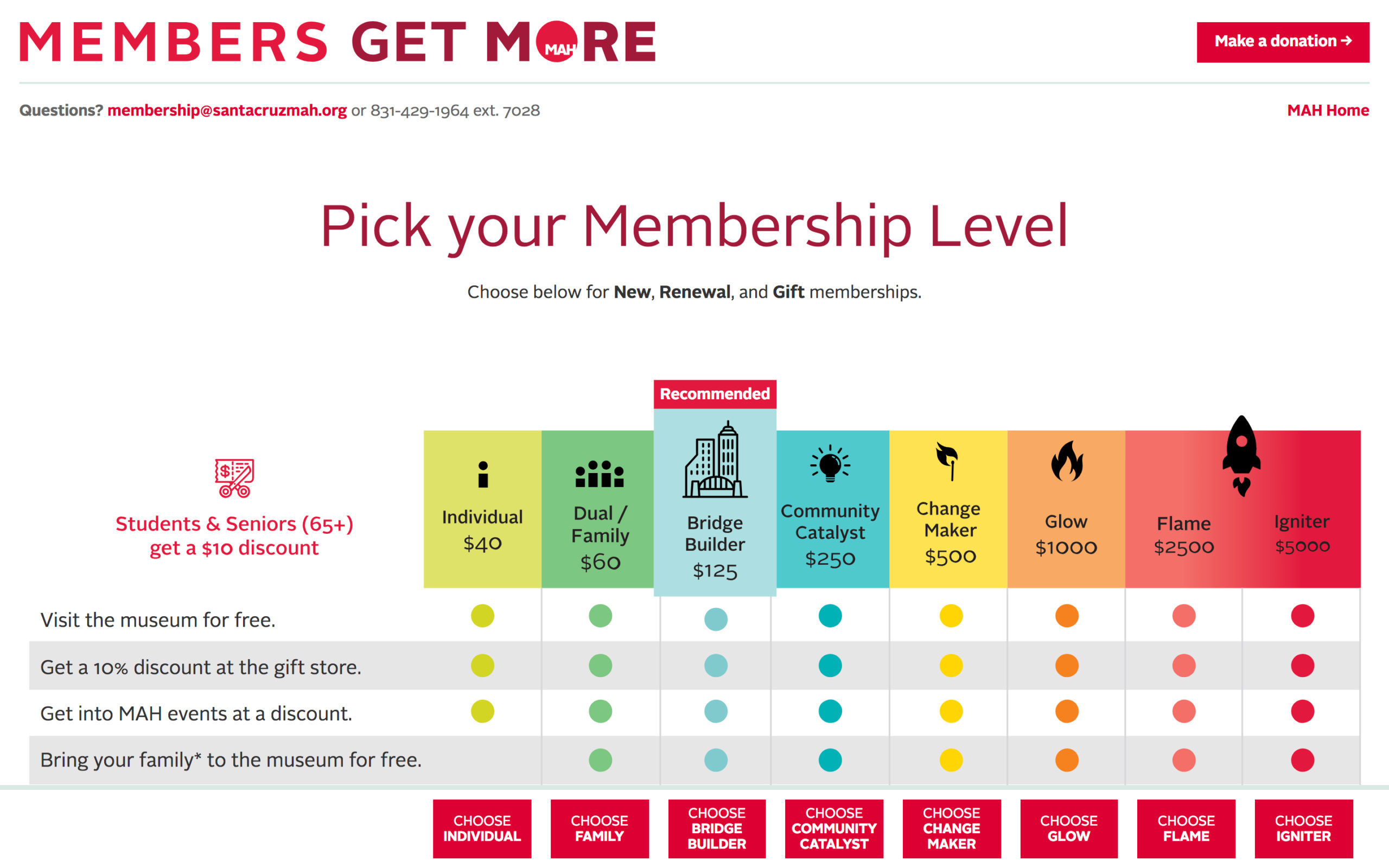
Executive Director Nina Simon (of the blog Museum 2.0) is leading The Museum of Art and History in its mission to establish itself as the cultural center of Santa Cruz. The museum’s innovative vision is founded on responsive engagement with its local communities; my role was to manifest this as a website, empowering staff with an intuitive, easy to use configuration.

Convenience

convenience

Website, 2011–Present
www.conveniencegallery.com

LANGUAGES
JavaScript, PHP, HTML, CSS

CMS
WordPress

Convenience is a contemporary art window gallery in Toronto. Having outgrown its earlier design, this new site presents the complete archive of exhibitions in an accordion format that includes the ability to bookmark/link to a specific open-state.